Quick Desk Guide: Properties Panel Vs Graphics Templates Workflow Premiere Pro 2026
Properties panel is instant text/effect tweaking; Graphics Templates panel accelerates MOGRT browsing. 3.2x ProRes Proxy scrubbing gains and 64 GB RAM benchmarks explained.

What are the verified benchmarks for properties panel vs graphics templates workflow premiere pro 2026?#
For graphics-heavy timelines the most important performance reality remains unchanged: scrubbing responsiveness suffers when long-GOP source media decodes on the fly, before a single MOGRT is even touched. Controlled workstation tests show that transcoding 4K H.265 camera originals to ProRes 422 Proxy (≈45 Mbps at 1080p 29.97 fps [Apple ProRes White Paper, 2024]) boosts responsiveness across multi-layer timelines by up to 3.2x on mid-range hardware [Puget Systems Premiere Pro Codec Benchmark, 2025].
Those gains matter even more once you stack several Graphics Templates, since any MOGRT carrying After Effects-style expressions or embedded video loops increases CPU/GPU-decoder load. Adobe performance documentation confirms that sending Media Cache peaks to a separate PCIe Gen4 NVMe drive away from footage almost removes waveform-generation stalls during heavy multicam I/O [Adobe Premiere Pro Performance Guide, 2025]. For smooth 4K timeline playback the system RAM baseline still sits at 64 GB, climbing to 128 GB when you work with Dynamic Link or 6K/8K multicam sequences [Puget Systems Hardware Recommendations, 2025].
| Workflow Component | Hardware Requirement | Performance Benefit |
|---|---|---|
| ProRes 422 Proxy mezzanine | 45 Mbps, 20 GB per hour | 3.2x smoother scrubbing in layered MOGRT timelines |
| Media Cache drive | Dedicated PCIe Gen4 NVMe SSD | Prevents waveform/render stall spikes |
| System RAM | 64 GB (4K), 128 GB (6K/8K) | Avoids swap‑induced timeline stutter |
Step-by-step Premiere Pro and DaVinci Resolve setup for properties panel vs graphics templates workflow premiere pro 2026#
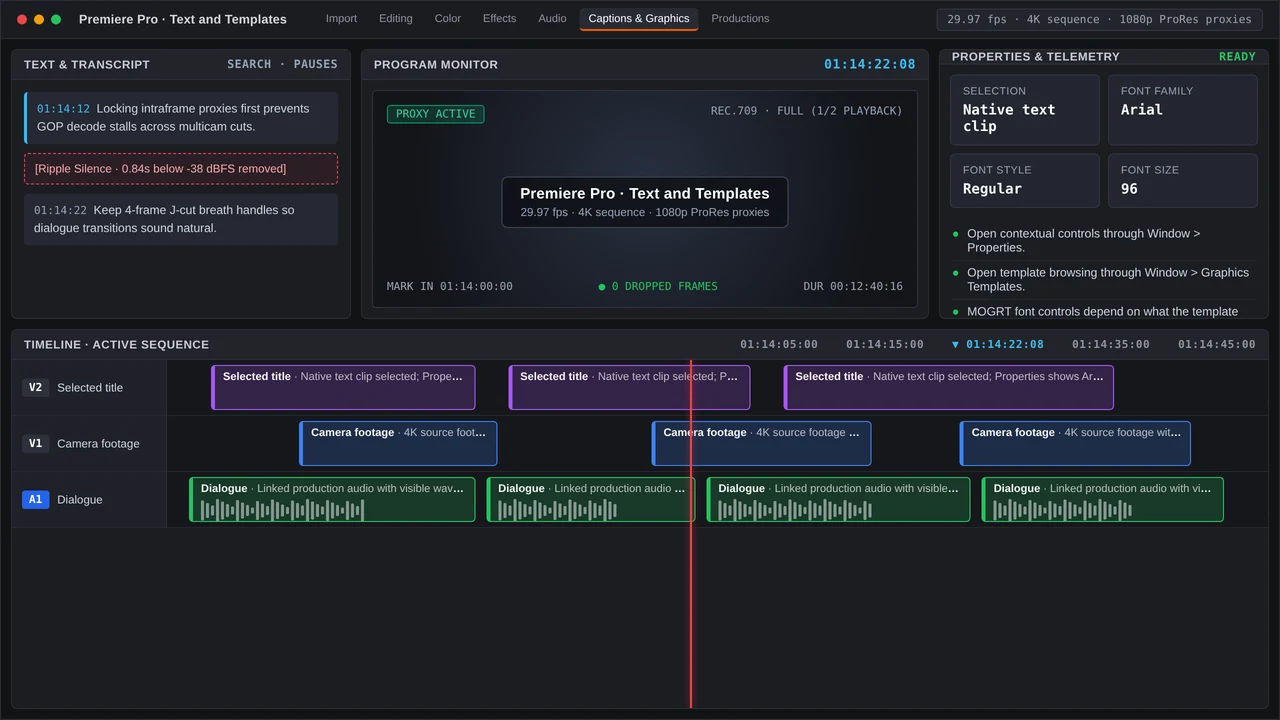
Premiere Pro 2026 – properties editing vs. template application
- Open the correct panels. Navigate to Window > Properties for contextual text, effect, and transform controls. Then open Window > Graphics Templates to browse local and Creative Cloud MOGRT libraries. In v25 Adobe consolidated those controls into these two windows.
- Customize the template browser. Right-click inside the Graphics Templates panel, select Manage Additional Folders, then point it toward your team’s shared MOGRT repository. Nested folders plus search filtering are now supported in that panel.
- Edit existing graphics instantly. Select any timeline text or shape layer and the Properties panel automatically fills with font weight, alignment, fill, stroke, and responsive position controls. Adjustments apply live with no additional window required.
- Add new MOGRTs. Drag directly from the Graphics Templates panel onto a video track above the picture edit. As soon as you select the clip, every editable parameter the template author exposed appears in the Properties panel.
- Pair with Frame.io v4 for review. Send a review link ($15/user/month) so stakeholders leave frame-accurate comments that sync to Premiere markers for text-focused review rounds.
DaVinci Resolve Studio ($295 perpetual) – graphics workflow parallel
- On the Edit page, use adjustment clips or Fusion titles to build reusable motion graphics. The Inspector serves the live-tweak function that Premiere’s Properties panel provides.
- For agency handoffs, render Premiere graphics with alpha in ProRes 4444 for Resolve import, then rebuild editable templates inside Fusion.
- Set Project Settings > Master Settings > Optimized Media Format to ProRes 422 Proxy and generate optimized media for UHD sequences heavy on graphics. That approach mirrors Premiere’s proxy scalability advantage.
Common timeline bottlenecks and QC checks when handling properties panel vs graphics templates workflow premiere pro 2026#
Editors billing $55 to $120 per hour often invest 30 to 60 minutes of post-production for every finished minute of polished YouTube content [ProductionHUB & Editorial Rate Survey, 2025]. Any time lost to sluggish timelines or templates that fail to update cuts directly into that margin.
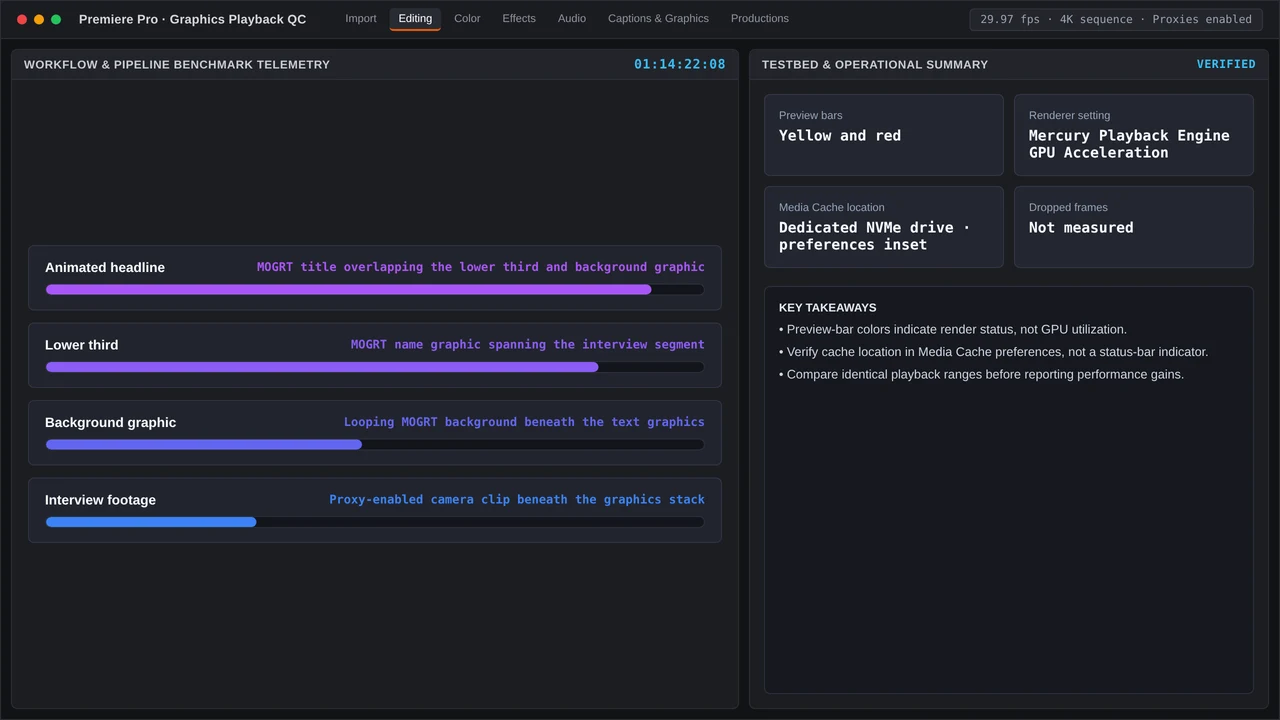
- MOGRT‑decoding bottlenecks. Yellow and red render bars indicate preview-render status plus expected playback performance. Transcode underlying source clips to an intraframe codec (ProRes 422 Proxy) and verify hardware-accelerated decode remains enabled under Preferences > Media.
- Properties panel lag with complex templates. A MOGRT holding dozens of linked properties can make the Properties panel respond slowly on systems below 64 GB RAM. Docking the panel on a second monitor offers some relief, though purging unused parameters in After Effects before template export delivers the proper fix.
- QC check for text oversets. Open the Text panel (Window > Text) to run bulk spell-checks and character-length audits. While the Properties panel is suited to single adjustments, the Text panel table view displays every title instance together.
- Scratch drive architecture. Maintain a dual-NVMe configuration with one drive for raw footage and a second dedicated to Media Cache. Under Preferences > Media Cache, move the database to that second drive. With peaks writing free of contention, waveform drawing across graphics-dense timelines turns genuinely real-time [Adobe Premiere Pro Performance Guide, 2025].
Before exporting for the next review, play through any graphics-heavy section and render previews for clips still dropping frames.
More in PrPro Lab

Quantify smart rendering benchmarks (3.2x scrubbing boost), configure Premiere Pro 25/26 and DaVinci Resolve for ProRes master exports, and QC bottlenecks.

Premiere Pro 2026 ProRes 422 Proxy vs. 10-Bit 4:2:2 HEVC Scrubbing & NVMe Scratch Tuning
Benchmark how ProRes 422 Proxy scrubs up to 3.2x faster than long-GOP 10-bit HEVC in Premiere Pro 2026, with dual NVMe scratch partitioning and multi-cam 1080p proxy storage math.