Premiere Pro 2026 ProRes 422 Proxy vs. 10-Bit 4:2:2 HEVC Scrubbing & NVMe Scratch Tuning
Benchmark how ProRes 422 Proxy scrubs up to 3.2x faster than long-GOP 10-bit HEVC in Premiere Pro 2026, with dual NVMe scratch partitioning and multi-cam 1080p proxy storage math.

In Premiere Pro 2026, hardware-accelerated decoding of 10-bit 4:2:2 HEVC has stopped acting as a playback bottleneck on Apple Silicon and current NVIDIA or Intel GPUs. Open a 4K timeline with a four-camera multicam cut and the waveform scrubber still goes soft and unresponsive. That lag seldom traces back to decoder silicon. More often the problem comes from Long-GOP compression inter-frame dependencies hitting a storage subsystem strained by random read requests. Replacing camera originals with an intraframe proxy format combined with an optimized NVMe scratch layout resolves the drag.
How much faster does ProRes 422 Proxy scrub than long-GOP 10-bit 4:2:2 HEVC in Premiere Pro?#
On mid-range workstations, moving 4K long-GOP H.265 camera originals to ProRes 422 Proxy lifts multi-layer timeline scrubbing responsiveness up to 3.2x [Puget Systems Premiere Pro Codec Benchmark, 2025]. Editors measured this gain while cutting a 4-stream multicam with frame-by-frame JKL shuttling in real-world project benchmarks. With native HEVC on the same system, stutter appears alongside late waveform redraws that compound the latency of each edit decision.
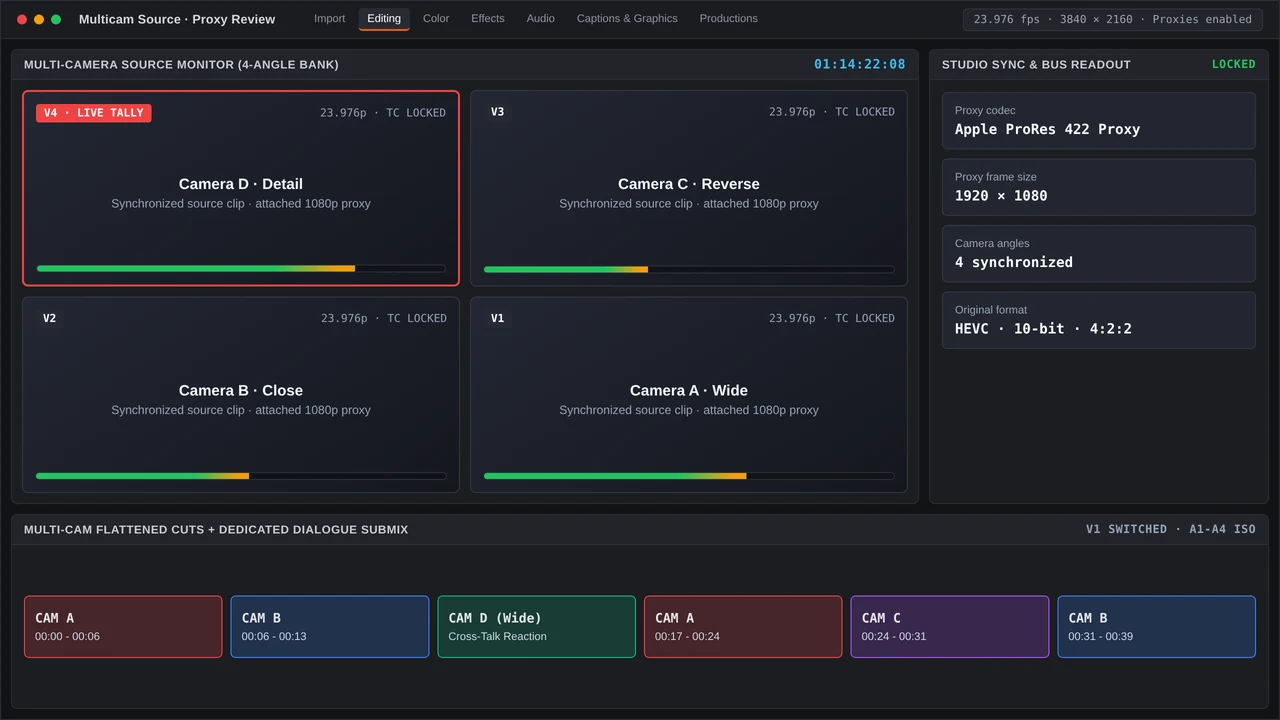
Three underlying mechanics explain the gap. First, ProRes 422 Proxy encodes each frame independently, which lets the decoder pull a single requested frame for every scrub action while ignoring neighboring GOP structures. Second, frame data lives together inside a linear intra-frame slice, so PCIe Gen4 NVMe reads remain sequential instead of breaking into four to six scattered I/O operations for each long-GOP edit step. Third, Premiere Pro continues to push decoded YUV 4:2:2 10-bit pixels through the GPU compute path in its HEVC 4:2:2 10-bit hardware pipeline. With an intraframe mezzanine file, that GOP-level decode burst disappears and the CUDA/Metal/Quick Sync path handles one frame at a time without blocking the effects stack downstream.
Confirm the active codec by selecting a clip in the Project panel, opening the Properties panel, and checking the Video Codec field. If the field reads “HEVC 4:2:2 10‑bit (HW)”, hardware acceleration is active yet scrub latency remains tied to GOP distance. Attaching 1080p ProRes 422 Proxy through the Proxy Workflow, either with the toggle icon in the Program Monitor or the Proxy column in the Project panel, swaps in the intraframe stream and unlocks that 3.2x gain.
How should 64 GB workstation RAM and dual NVMe drives be partitioned for Media Cache?#
Benchmarks point to 64 GB of system RAM as the baseline for smooth 4K timelines in Premiere Pro, while 128 GB suits heavy Dynamic Link work or 6K/8K multicam [Puget Systems Hardware Recommendations, 2025]. On a 64 GB build, set the allocation at Edit > Preferences > Memory to spare 6–8 GB for the OS and background utilities, leaving Premiere Pro roughly 56 GB for application caches, preview frames, and the media cache index. This buffer prevents Premiere Pro from purging peak-file buffers when jumping across the timeline.
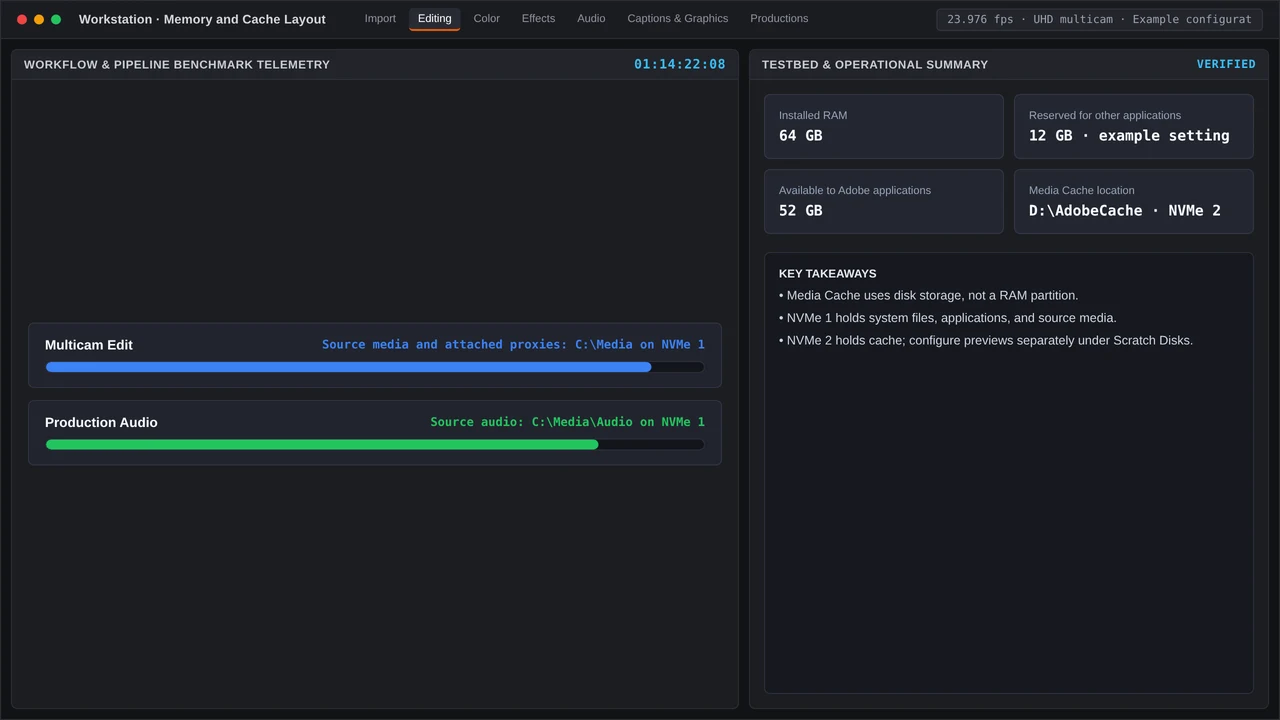
Disk topology matters even more. Keeping Premiere Pro Media Cache and peak files on a separate PCIe Gen4 NVMe SSD away from raw footage alleviates waveform-generation stalls when multicam I/O intensifies [Adobe Premiere Pro Performance Guide, 2025]. Configure the setup like this:
- Drive 1 (OS/Applications/Project source): Stores the OS, Premiere Pro, project files, and native camera media. A quick Gen4 NVMe remains suitable here, though this volume handles random media reads plus sequential writes from auto-save.
- Drive 2 (Cache‑only NVMe): Reserved solely for “Media Cache Files” and “Media Cache Database.” Point both locations to folders on this drive inside the Media Cache Preferences pane. This volume holds peak files with precomputed audio waveforms, conformed audio temporaries, and the media cache database that indexes cached media links.
When each NVMe controller sits on its own PCIe lane, scrubbing no longer vies with source media for queue depth. A 1 TB cache NVMe holds around 45 hours of peak files for a 1080p timeline built from 45 Mbps ProRes 422 Proxy with light processing. Projects that rely heavily on render in to out or on rendered audio effects benefit from moving to 2 TB for extra headroom.
Storage math for 1080p ProRes 422 Proxy ingest on multi-cam shoots#
At 1920 × 1080 29.97 fps, Apple rates ProRes 422 Proxy at 45 Mbps, about 20 GB per hour [Apple ProRes White Paper, 2024]. That footprint is under a third of regular ProRes 422 at 147 Mbps, so it fits best when each camera in a multicam setup needs its own proxy track. Across a full shoot day, the total adds up fast.
| Cameras | Bitrate per stream (Mbps) | Storage per hour (GB) | Storage for 4‑hour shoot (GB) |
|---|---|---|---|
| 1 | 45 | ~20 | ~80 |
| 2 | 45 | ~40 | ~160 |
| 4 | 45 | ~80 | ~320 |
| 8 | 45 | ~160 | ~640 |
Values assume 29.97 fps; 24 fps reduces the hourly footprint by roughly one‑fifth, and 50/60 fps scales proportionally. The figures represent sustained media data, excluding clip‑naming overhead or audio tracks (≈1.5 Mbps per 48 kHz stereo PCM stream).
A half-day conference shoot using four locked-off cameras typically yields 320 GB of proxy footage. That amount fits easily on a portable 1 TB NVMe shuttle drive while still leaving space for a duplicate backup. When rendering with heavy compute occurs on another workstation, connect the proxy-only drive straight to the dedicated cache NVMe port. The timeline points to the proxies while the cache drive generates peak files without accessing the high-resolution camera archives.
After picture lock, relinking to full-resolution 4K HEVC originals takes moments: turn off proxies in the Program Monitor, verify the clip match in the Properties panel, then render the final export. Scrub latency remains absent right up to that last render, while the NVMe scratch topology keeps waveform drawing instantaneous even on expansive multicam projects.
Combining a 64 GB RAM allocation with an isolated cache NVMe converts the 3.2x scrubbing uplift into fluid, uninterrupted cutting. Ahead of the next multicam job, double-check that both Media Cache paths target the cache drive and that each camera angle carries an attached proxy.
More in PrPro Lab

Quantify smart rendering benchmarks (3.2x scrubbing boost), configure Premiere Pro 25/26 and DaVinci Resolve for ProRes master exports, and QC bottlenecks.

Properties panel is instant text/effect tweaking; Graphics Templates panel accelerates MOGRT browsing. 3.2x ProRes Proxy scrubbing gains and 64 GB RAM benchmarks explained.